Connect a Calendar
Use this guide to connect a calendar before using Calendaria from web chat, Telegram, WhatsApp, or a public-calendar sync.
Demo screenshot
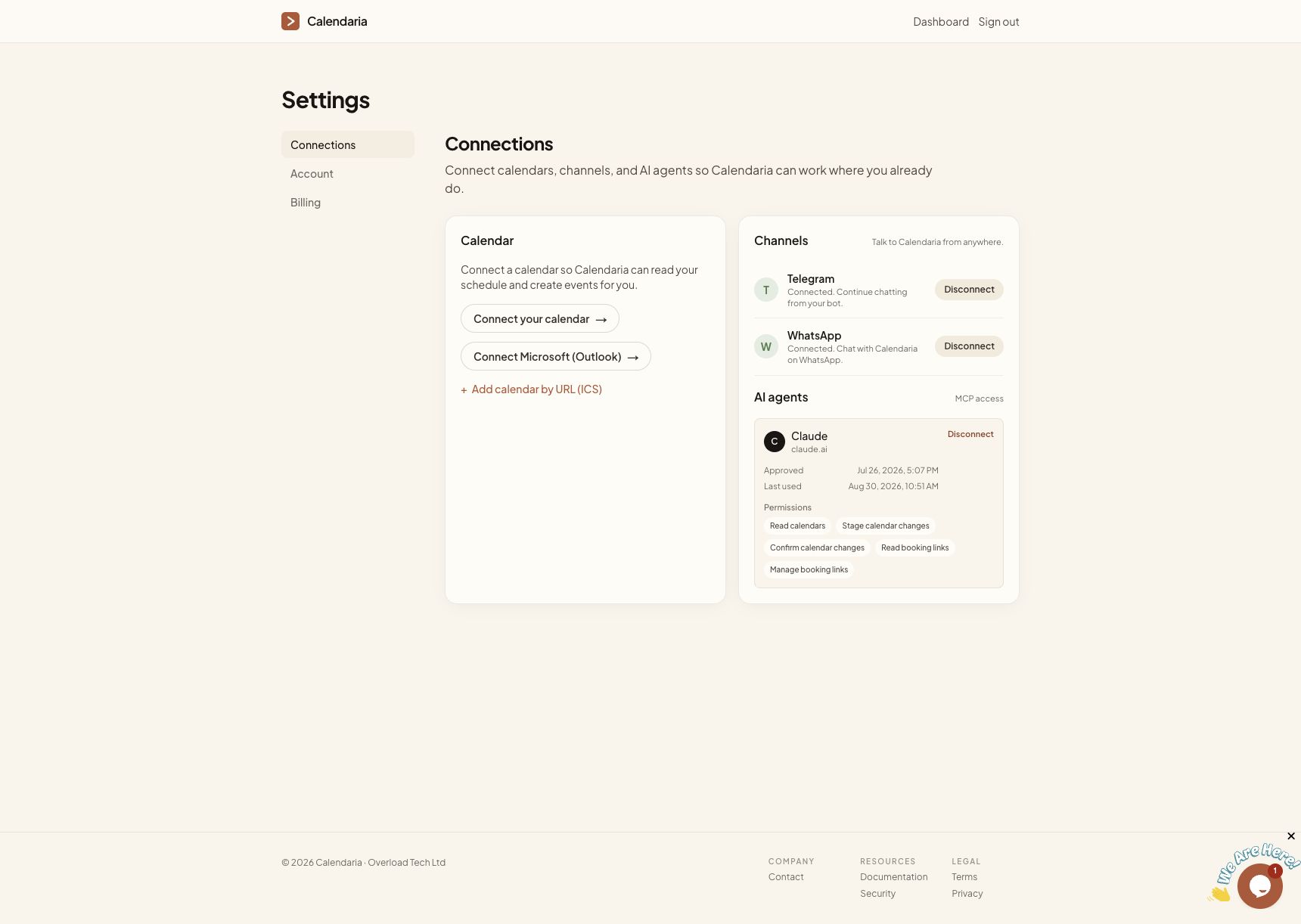
The screenshot shows a completed Calendaria demo account. Your connected providers and account names will be different.
1. Open Settings
From the Dashboard, open Settings and choose Connections. Under Calendar, choose the provider you use:
- Connect Google Calendar for Google Calendar.
- Connect Microsoft (Outlook) for Microsoft 365 or Outlook.
- Add calendar by URL (ICS) for a read-only ICS feed.
2. Approve access
For Google Calendar or Microsoft Outlook, approve the permissions requested by the provider and return to Calendaria. The connected calendar can then be used for calendar questions, confirmed calendar changes, and public-calendar syncing.
Calendaria can work with multiple connected calendar accounts. Each account may contain several calendars, such as personal, work, family, or shared calendars.
3. Understand ICS connections
An ICS connection is read-only. Calendaria can read the feed and use it for calendar questions or as a source for a public calendar, but it cannot create, edit, or delete events in the ICS source.
Web chat remains available for ICS connections. Write actions require a writable Google Calendar or Microsoft Outlook connection.
Same chat surface
Once any calendar connection is available, you can use web chat. Telegram and WhatsApp can also be linked independently from Settings → Connections.
4. Continue to public calendars
When the connection is ready, follow Create and publish a public calendar to choose a specific source calendar and share its schedule.