Create and Publish a Public Calendar
Use this guide to create a public calendar from manual events, an ICS import, or a specific connected calendar source.
Demo screenshots
These screenshots show a completed Calendaria demo account. Your provider name, event count, public link, and chat code will be different.
1. Open Public calendars
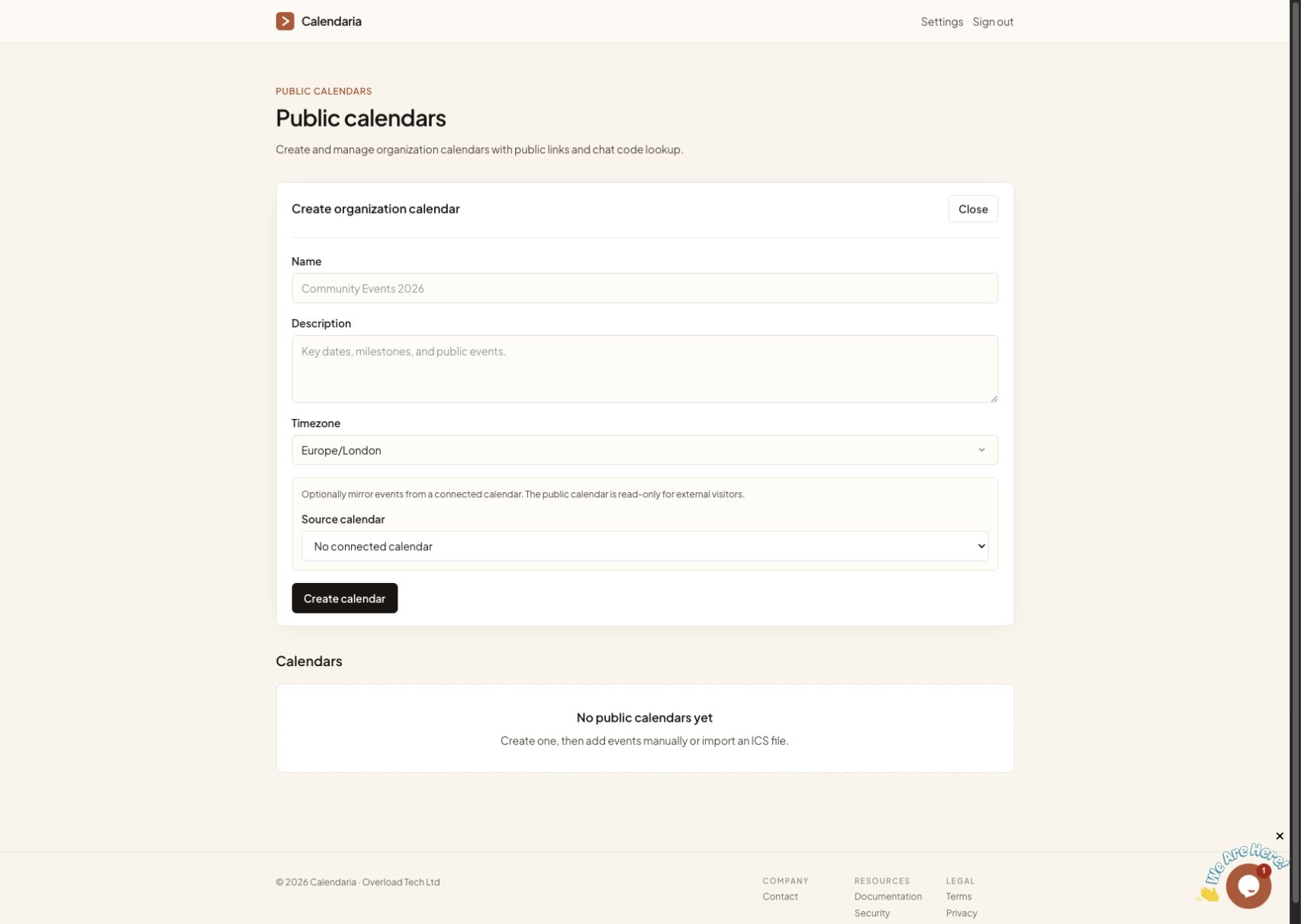
Return to the Dashboard and open Public calendars. Select New calendar to open the creation form.
Enter a name, optional description, and timezone. A public calendar is for sharing an event schedule; it is separate from a booking link or a group invite.
2. Select a specific source calendar
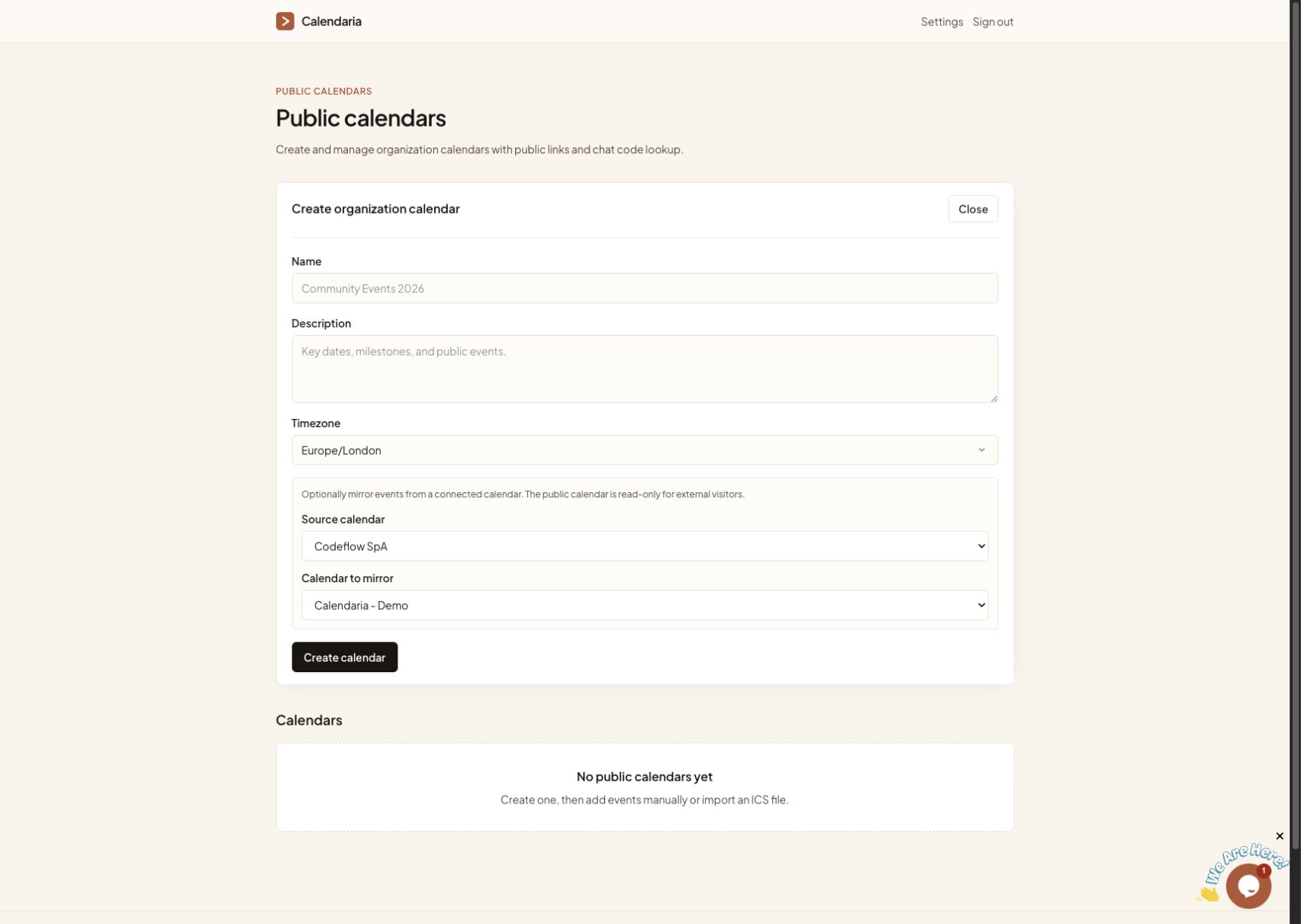
If you want the public calendar to follow an existing schedule, select the connected account under Source calendar. Then select the exact calendar to mirror under Calendar to mirror.
In this example, the source account is Codeflow SpA and the selected calendar is Calendaria - Demo.
Calendaria performs an initial sync and keeps this connection one-way: events are copied into the public calendar, while external visitors remain read-only and Calendaria never writes back to the source calendar.
For a complete connection walkthrough, see Connect a calendar.
3. Create and review the calendar
Select Create calendar. The manager view shows the sync status, copied event count, public and private chat codes, and links for the public and busy-only pages.
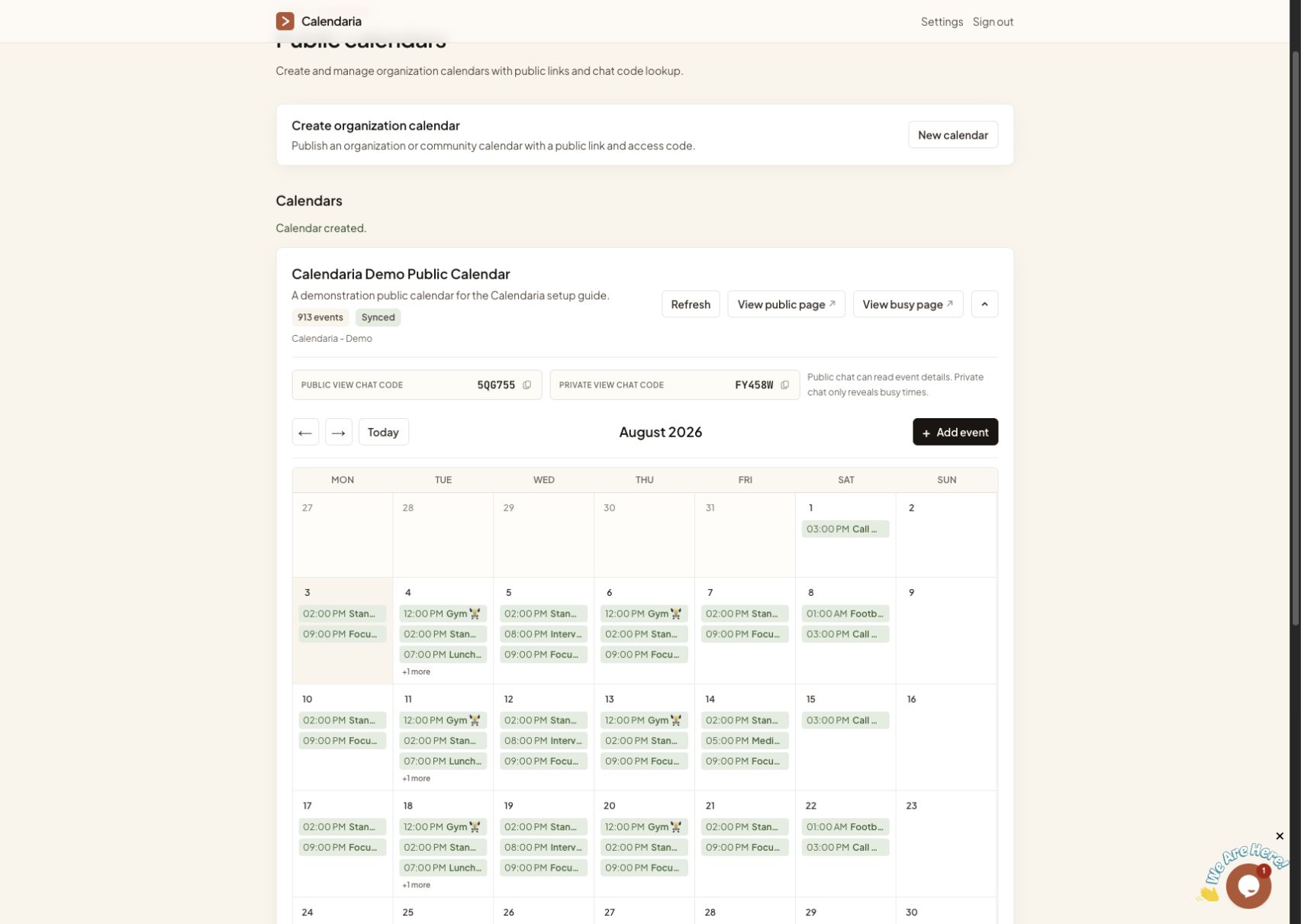
Use Refresh when you need to request an immediate sync. Linked calendars also refresh periodically. If the source is disconnected, the copied events remain visible while the calendar indicates that the sync needs attention.
4. Share the public page
Select View public page and copy the link into your website, newsletter, family portal, or other communication channel. The public page includes the monthly calendar, upcoming events, a subscribe option, and the public chat code.
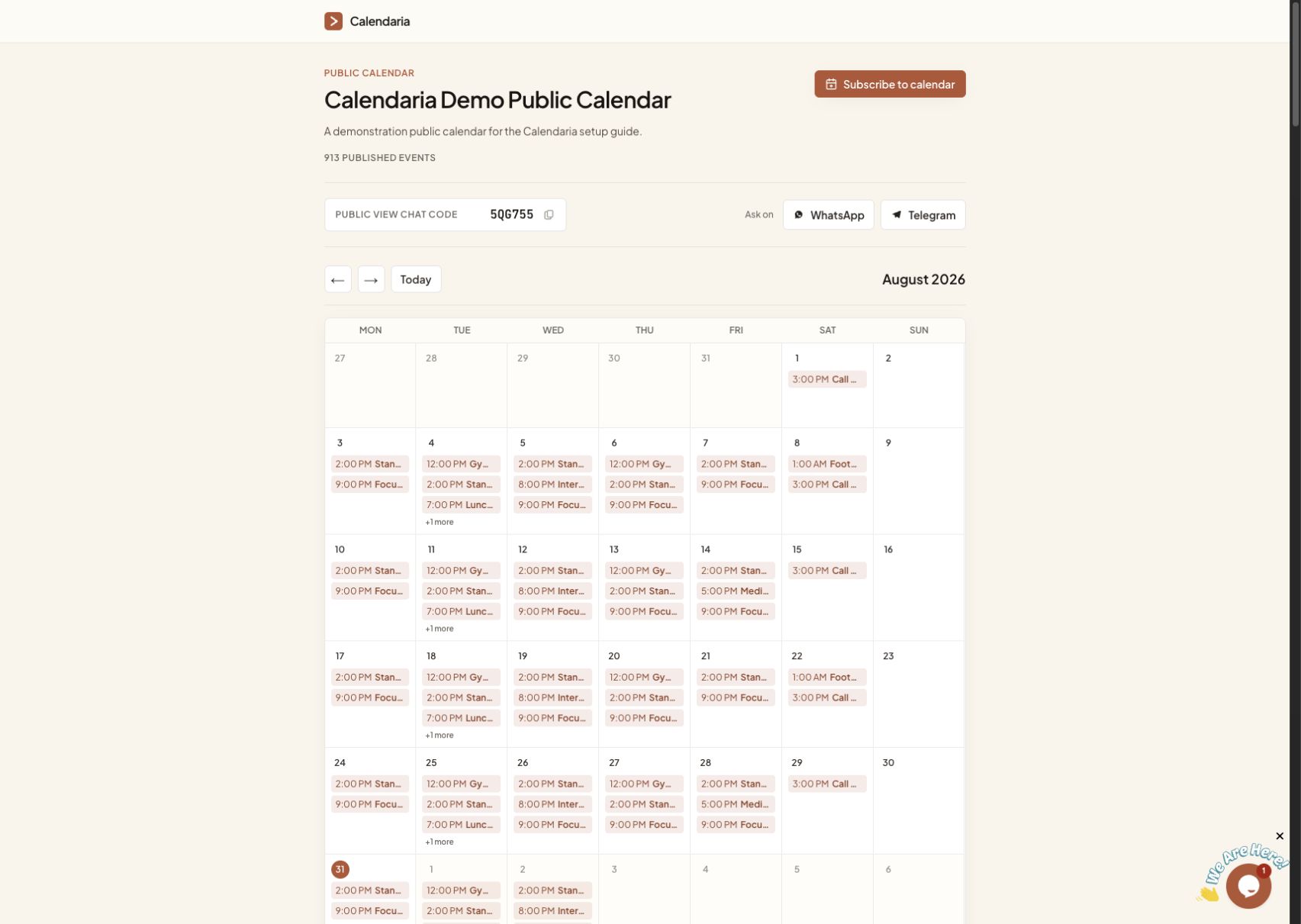
Visitors can subscribe through Apple Calendar, Google Calendar, Outlook, or another compatible calendar app. They can also use the displayed chat code to ask read-only questions through WhatsApp or Telegram.
5. Choose the right sharing level
- Use the public view when visitors should see published event details.
- Use the busy-only view when people only need to know when the calendar is occupied.
- Treat both links as shareable access: anyone who receives a link can use it.
Before sharing, check that event titles, times, locations, and descriptions are appropriate for the audience.
6. Keep the calendar current
Update the connected source calendar when it is the system of record, then use Refresh if the change needs to appear immediately. Manual events can be added directly to the public calendar.
For ICS sources, update the original feed. A later import can restore events that were removed only from the public copy.